English
中文
Français
Español
العربية
Pусский
Deutsch
日本語
Português
हिन्दी
Getting Started
How to use IpStar proxy
FAQ
SCRAPER
Integrate IpStar proxy
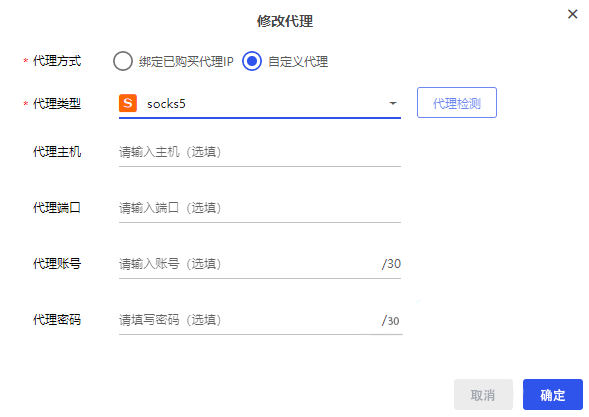
STEP 1: SELECT THE PROXY TYPE
Click Modify Proxy under proxy IP address. Select http or socks5 as the proxy type, for example, SOCKS5
STEP 2: FILL IN THE PROXY INFORMATION
Fill in the host port and proxy verification info(account & password)
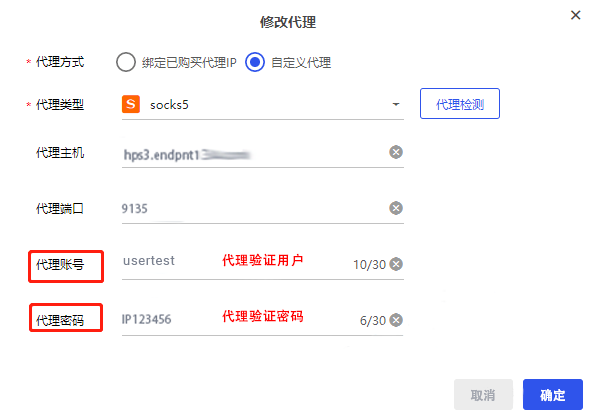
Tip: You can obtain the proxy info through the "obtain proxy" menu on your management console of the website .
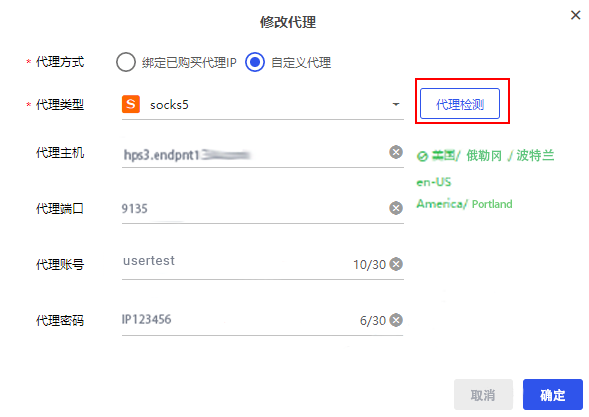
STEP 3: PROXY DETECTION
Fill in the proxy information and click Proxy Detection. If the displayed destination IP and address are the address you requested, it means that the configuration is successful